SharePoint: display search results as raw XML
Replace the XSL of the Search Core Results web part to see the raw XML, so you can tell search problems from XSLT problems.
Search results are formatted on screen with XSLT. Sometimes the output is not what you expect. The first debugging step is to view the raw XML, which shows whether the problem is in search or in the XSLT.
Paste this into the XSL Editor of the Search web part:
xml
<xsl:stylesheet version="1.0" xmlns:xsl="http://www.w3.org/1999/XSL/Transform">
<xsl:output method="xml" version="1.0" encoding="UTF-8" indent="yes" />
<xsl:template match="/">
<xmp><xsl:copy-of select="*"/></xmp>
</xsl:template>
</xsl:stylesheet>
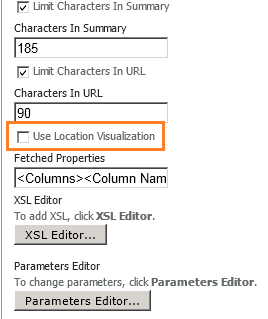
Out of the box, custom XSL is disabled. To enable it:
- Open the properties of the "Search Core Results" web part.
- Clear the "Use Location Visualization" property.