SharePoint - Custom approval workflow with dynamic approvers in SharePoint Designer
Build a document approval workflow in SharePoint Designer 2010 where the approver is picked from a column on the document.
This walkthrough builds a document approval workflow in SharePoint Designer. The approver is not fixed. It comes from a metadata column on each document.
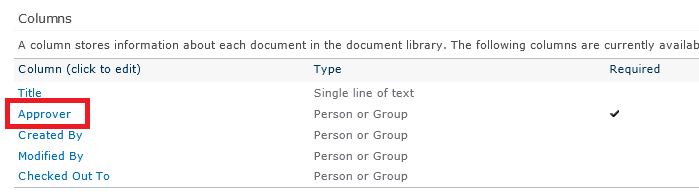
The document library has an "Approver" column:
Build the workflow
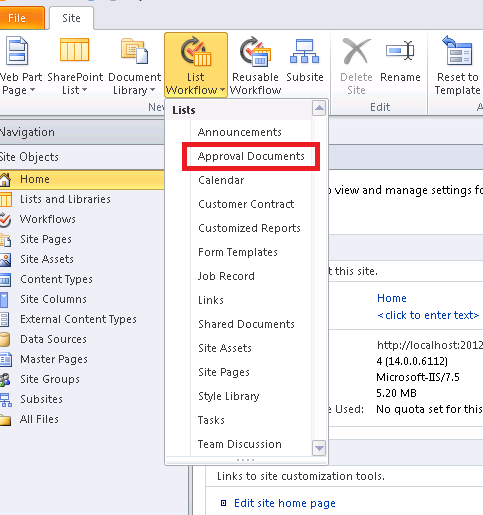
- Open the site in SharePoint Designer. On the ribbon, click List Workflow and select the document library.
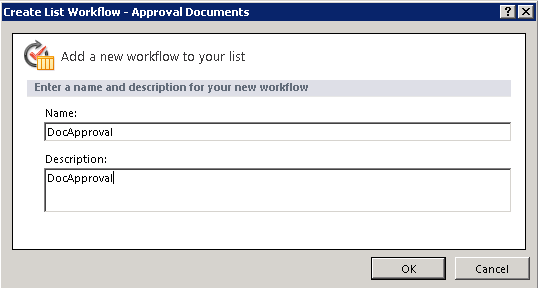
- Enter a name and description.
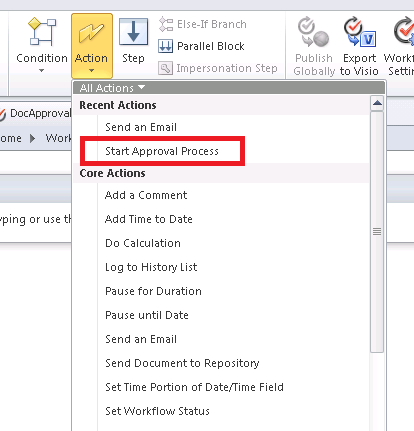
- Add the action "Start Approval Process" from the ribbon.
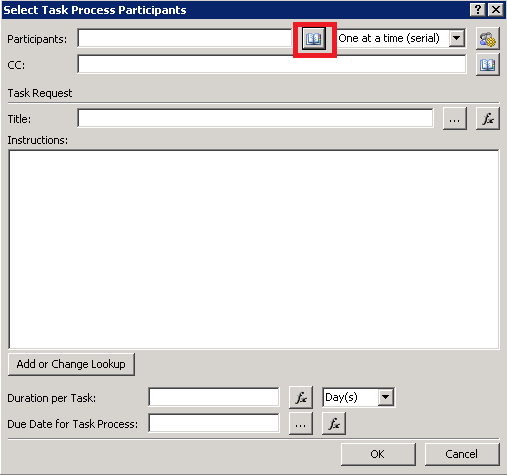
- Click the "these users" link to edit the step.

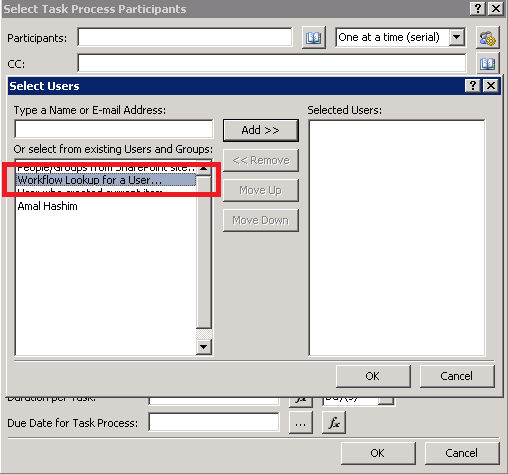
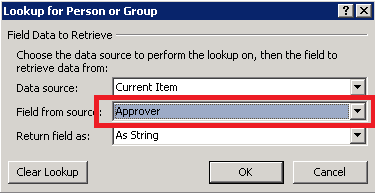
- Pick the approver from a property of the current item. This is what makes the approver dynamic.
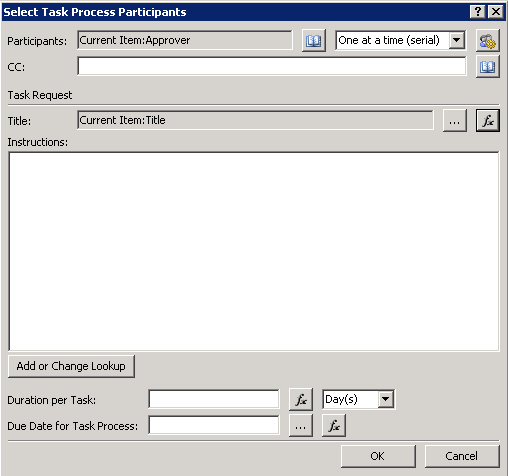
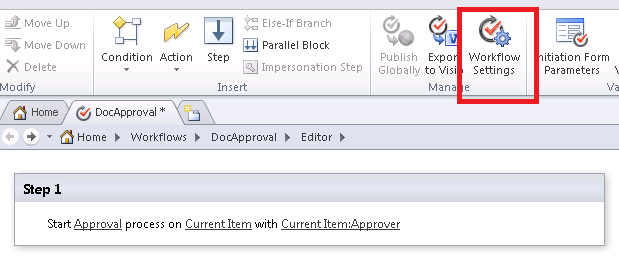
- Click OK, then choose Workflow Settings on the ribbon.
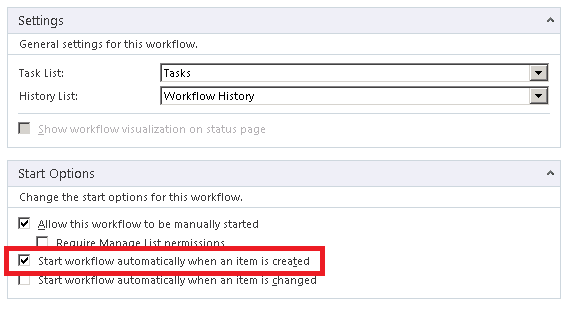
- Under start options, tick "Start workflow automatically when an item is created". Every new document in the library then goes through approval.
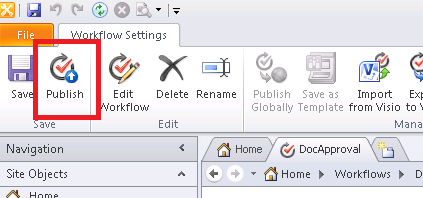
- Publish the workflow.
Test it
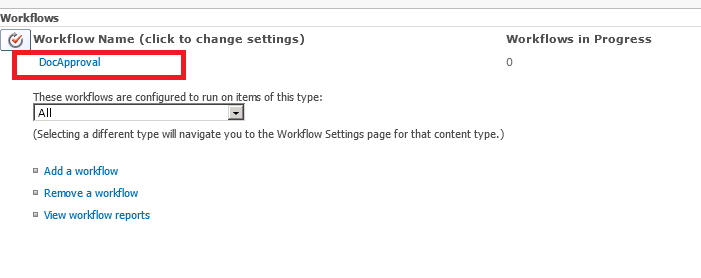
- Open the library settings, then Workflow settings, and check the workflow is associated.
- Upload a document and put a valid user in the Approver field.
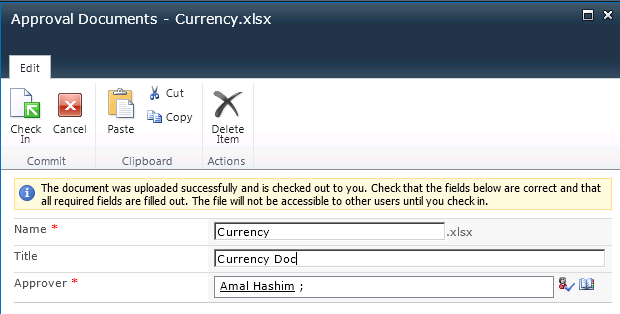
- The workflow starts and the status shows "In Progress".

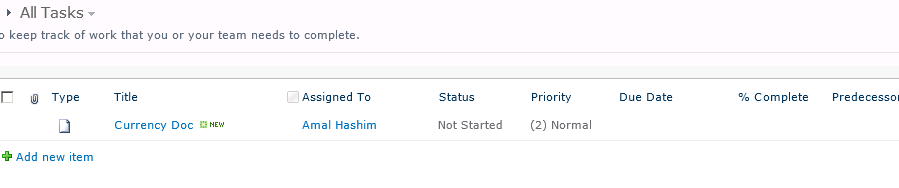
- A new task is created for the approver.
- Opening the task shows the Approve and Reject options.
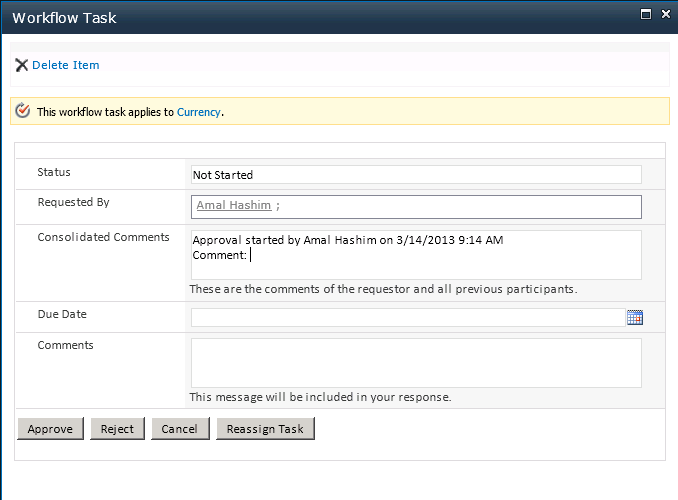
- Click Approve and the workflow completes.
