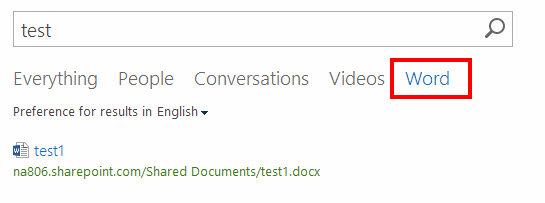
SharePoint 2013 - Specialized Search Experience
Create a search vertical for Word documents in SharePoint 2013 using a Result Source, a results page and a search settings link.
SharePoint 2013 Enterprise Search gives you a specialised search experience, with verticals such as "Everything" and "People".

"Everything" searches all crawled content, while "People" searches only people data. You can create your own quickly. As an example, here is one for Microsoft Word documents.
It takes two steps: create a Result Source, then use a Search Results web part.
Create the Result Source
- Open Site Settings and click Result Sources.
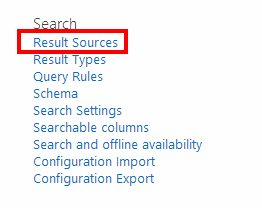
- Click New Result Source.

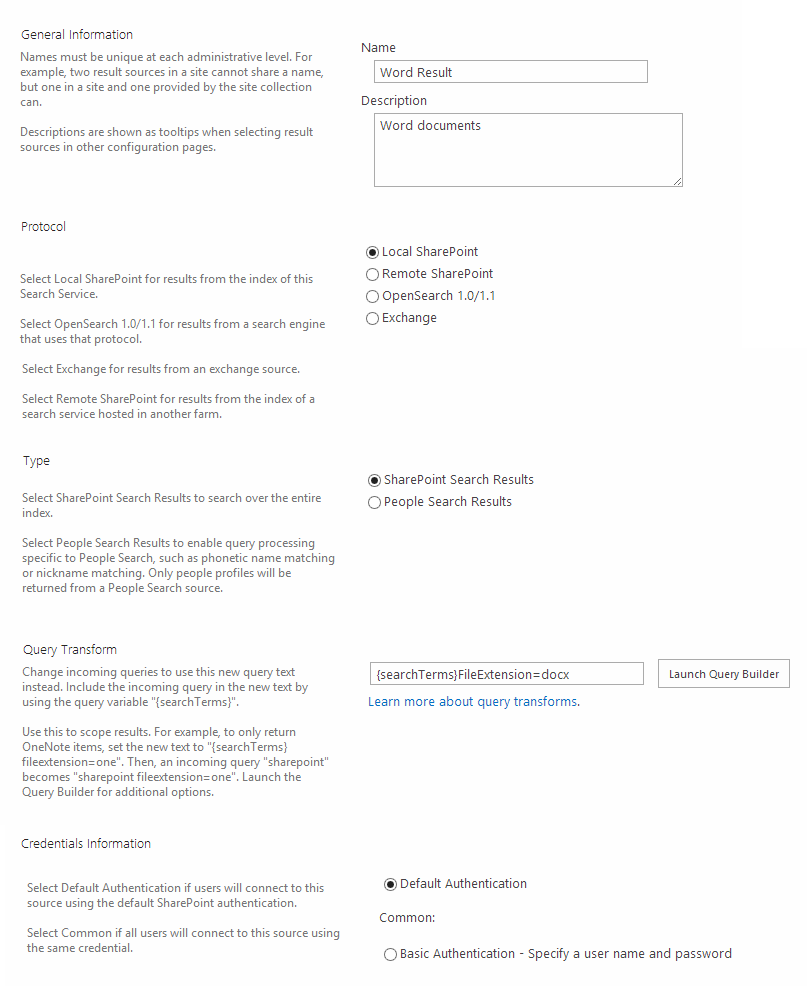
- Fill in the details, then save and close.
Create the results page
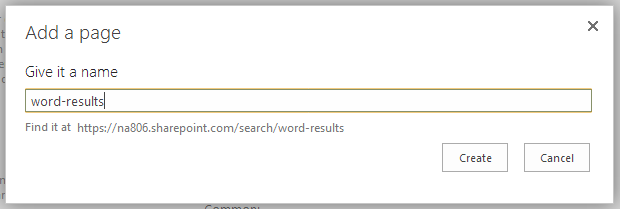
- Create a new page and name it
word-results.aspx.
- Edit the Search Results web part from its context menu and click Change Query.
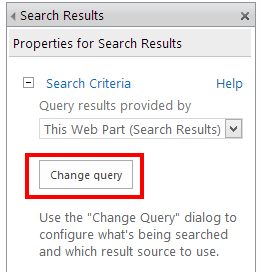
- In the query builder, pick "Word Results" from the Select Query dropdown.
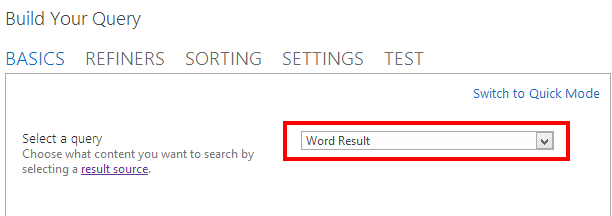
- Click OK, close the query builder, then apply and close the web part properties.
The page now returns only search results that are Word documents.
Add the search link
- Open Site Settings and click Search Settings.
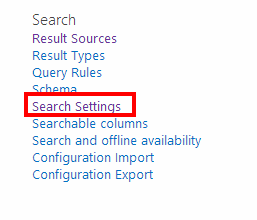
- Click Add Link and fill in the details.
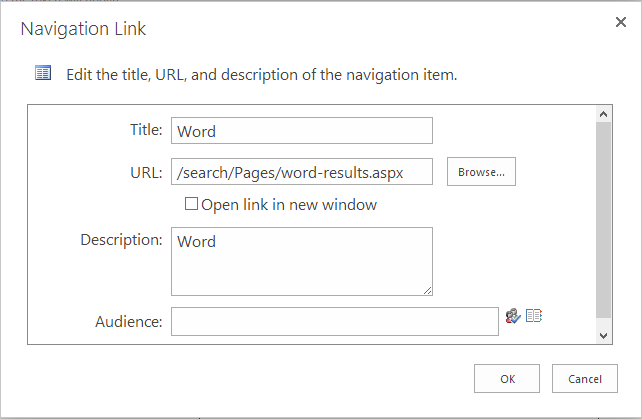
- Click OK and go to the search centre. The new vertical is now available.