SharePoint 2013 - List Validation
Use list validation settings and an IF formula to stop users saving items where any of three choice columns is set to None.
A friend recently asked how to apply list validation in SharePoint 2013, so here are the steps.
The requirement: a list has three choice columns, "A", "B" and "C". None of them may be saved with the value "None".
Steps
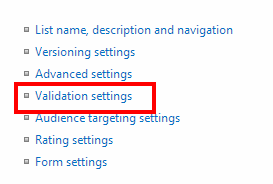
- Open the list settings.

- Click Validation Settings.
- Enter a formula and a message that appears when validation fails.
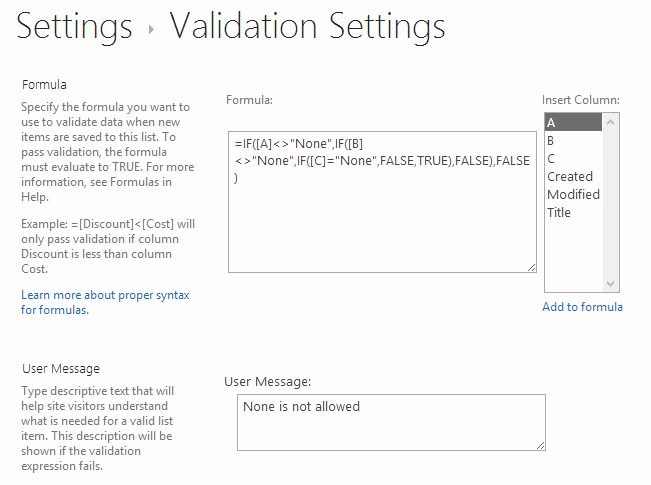
The formula uses IF. The general syntax is IF(condition, true case, false case). First check that column "A" is not "None". Only then validate "B", and the same logic applies to "C".
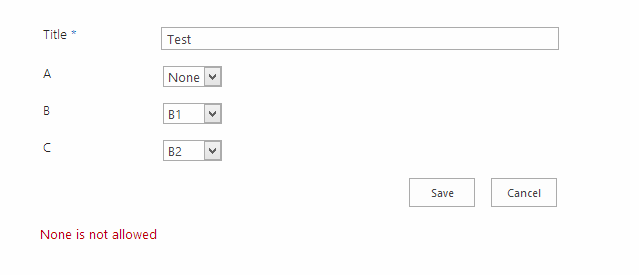
Example
An item with A = "Yes", B = "None", C = "No" is rejected and shows your message. An item with no "None" in any column saves normally.